
Your platform has a refreshed look and helpful new capabilities — but the fundamentals remain familiar. Use your existing login. Your data, permissions and core workflows remain in place.
This guide covers what to look for on your first day and three common tasks.
- Your login
- Your data and your transaction history
- Your permissions and approval rules
- Your saved profiles and templates
- Your relationship manager and support team
01 — Find your way around
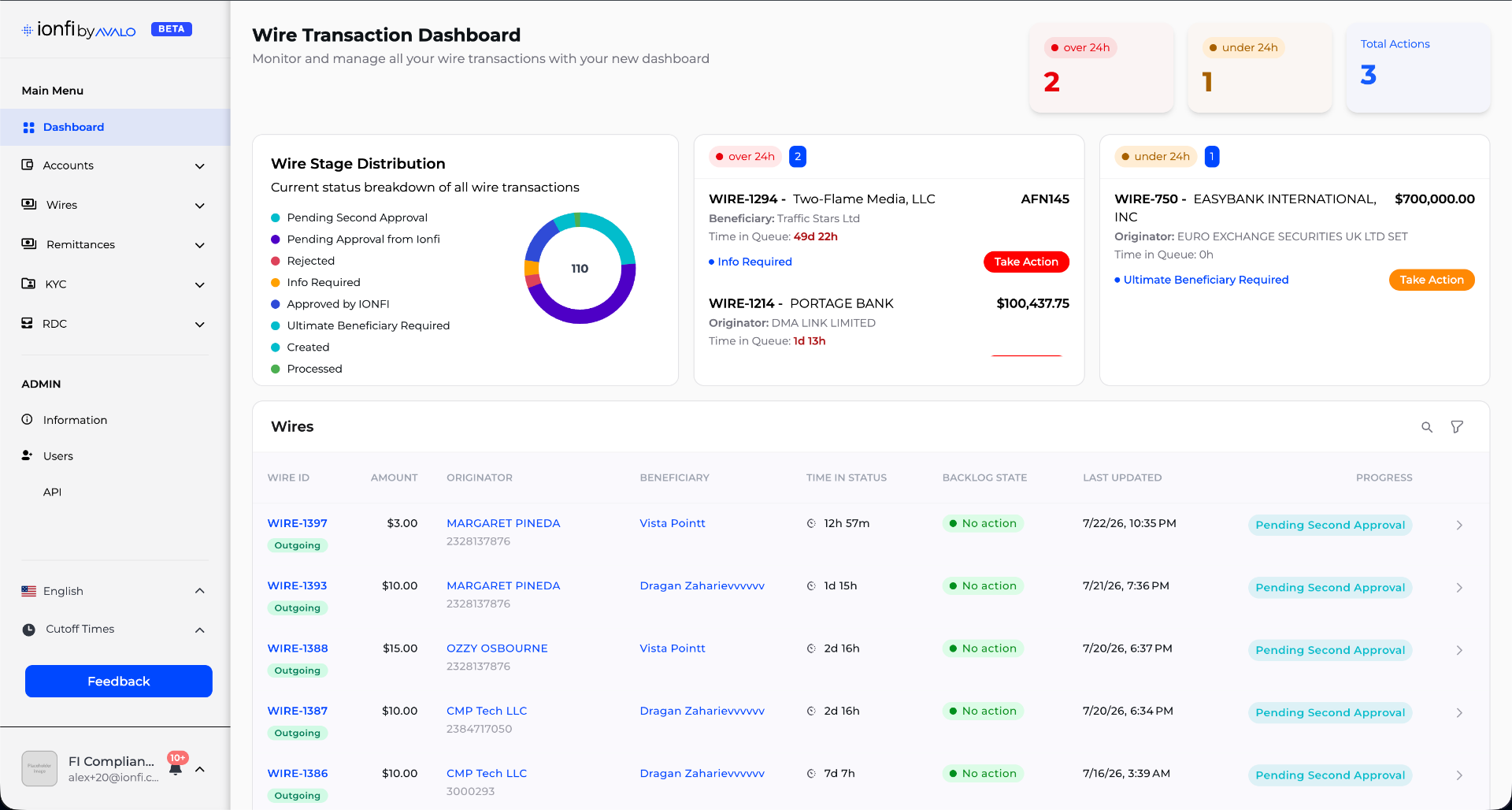
- 1Main menu. Your dashboard, accounts and wire activity.
- 2Account balances. Current and available balances, visible from the top of every screen.
- 3Notifications. Items that need your attention, with a direct path to respond.
- 4Wire activity. Open Incoming Activity or Outgoing Activity to find and review transactions using search and filters.
- 5Language. Switch between English and Spanish using the language control.
02 — Create an outgoing wire
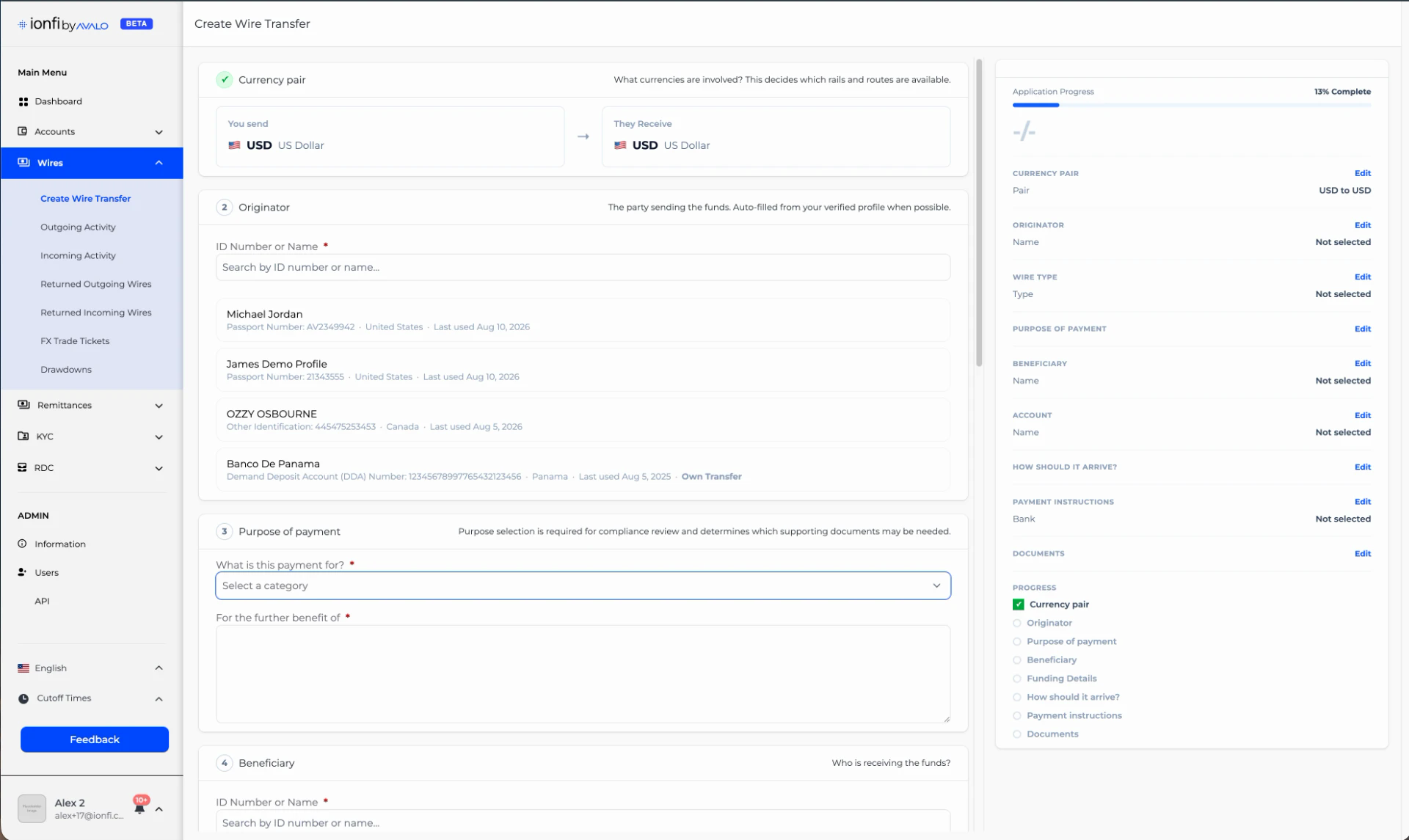
- 1Select Create and begin a new outgoing wire.
- 2Choose the originator and beneficiary.
- 3Follow the guided steps to complete the transaction details.
- 4Attach any required supporting documents, including those already on file.
- 5Review the information and submit the wire.
Based on the originator and beneficiary selected, the platform guides the transfer type and account. Address fields complete and validate as you type, helping identify errors before submission.
03 — Find and track a wire
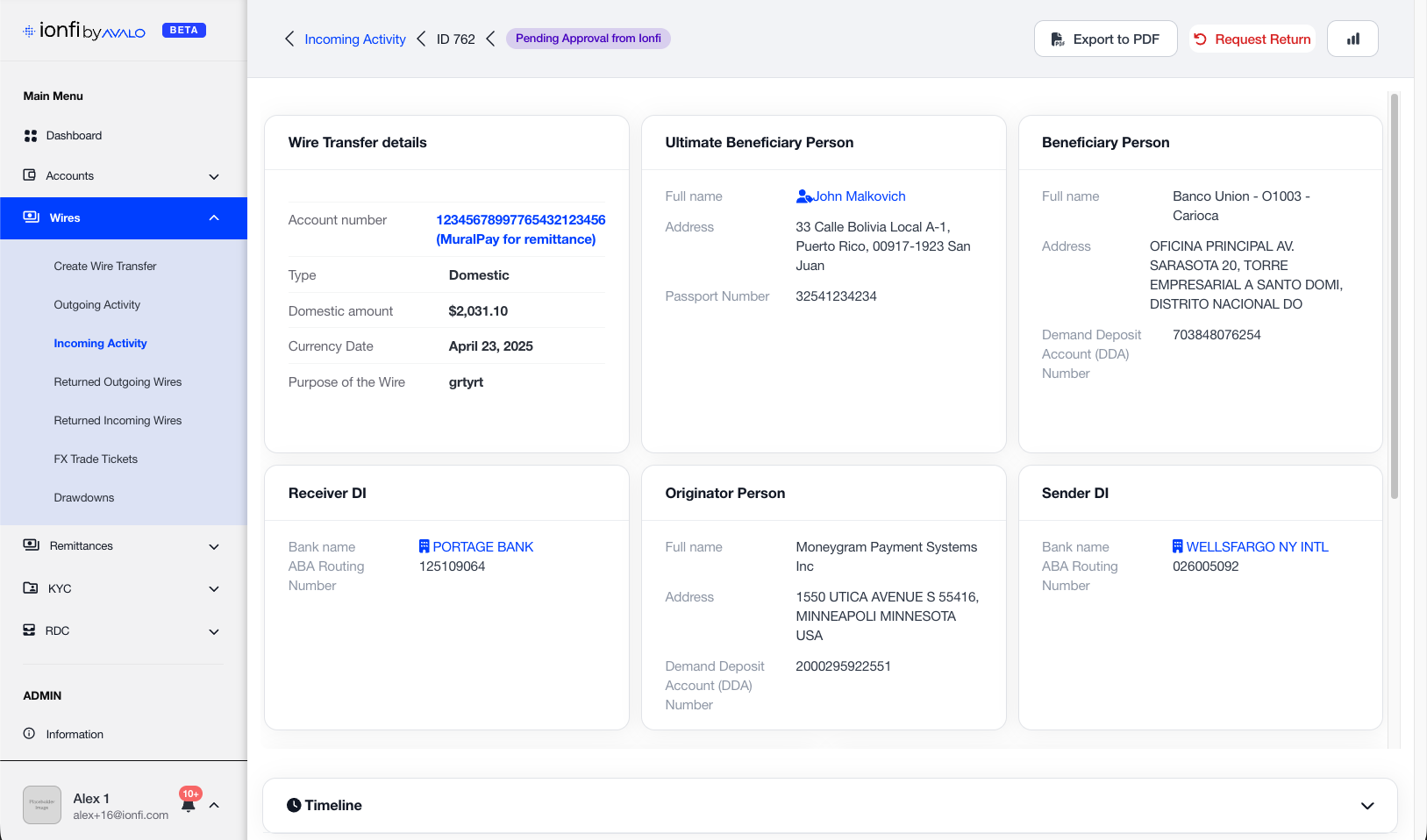
- 1Open Incoming Activity or Outgoing Activity.
- 2Use search or filters to locate the transaction.
- 3Open the transaction record to review its current status.
- 4Follow its progress through the transaction timeline.
- 5Review comments, requested actions and any available confirmation.
The timeline shows the wire's current stage and any action required, so you can see where it stands without having to ask.
04 — Respond to a request
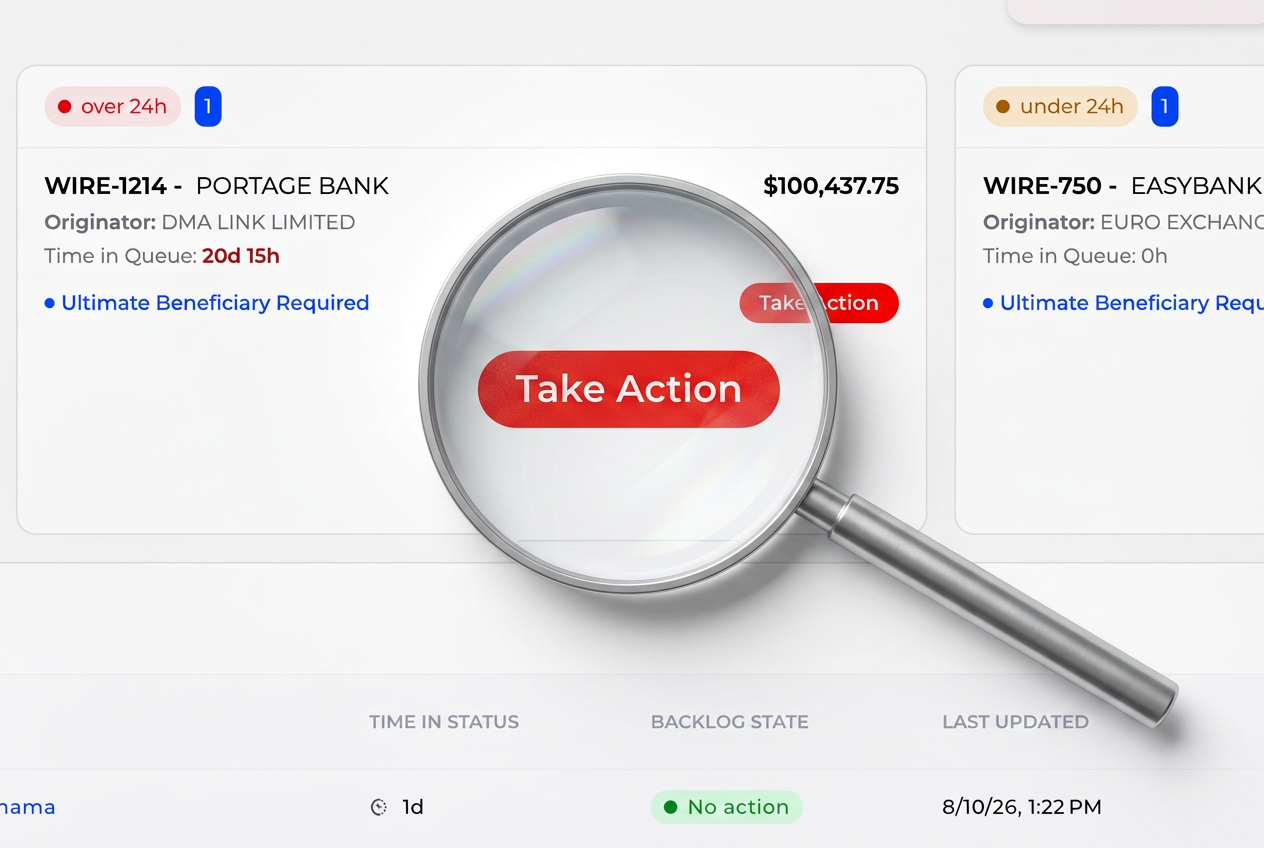
- 1Open the notification or transaction that needs attention.
- 2Review the information being requested.
- 3Update the information directly within the platform.
- 4Attach or preview the supporting documents.
- 5Submit the updated information for review.
For eligible requests, you can update the requested information and supporting documents directly in the platform and submit them for review — without sending a separate email.